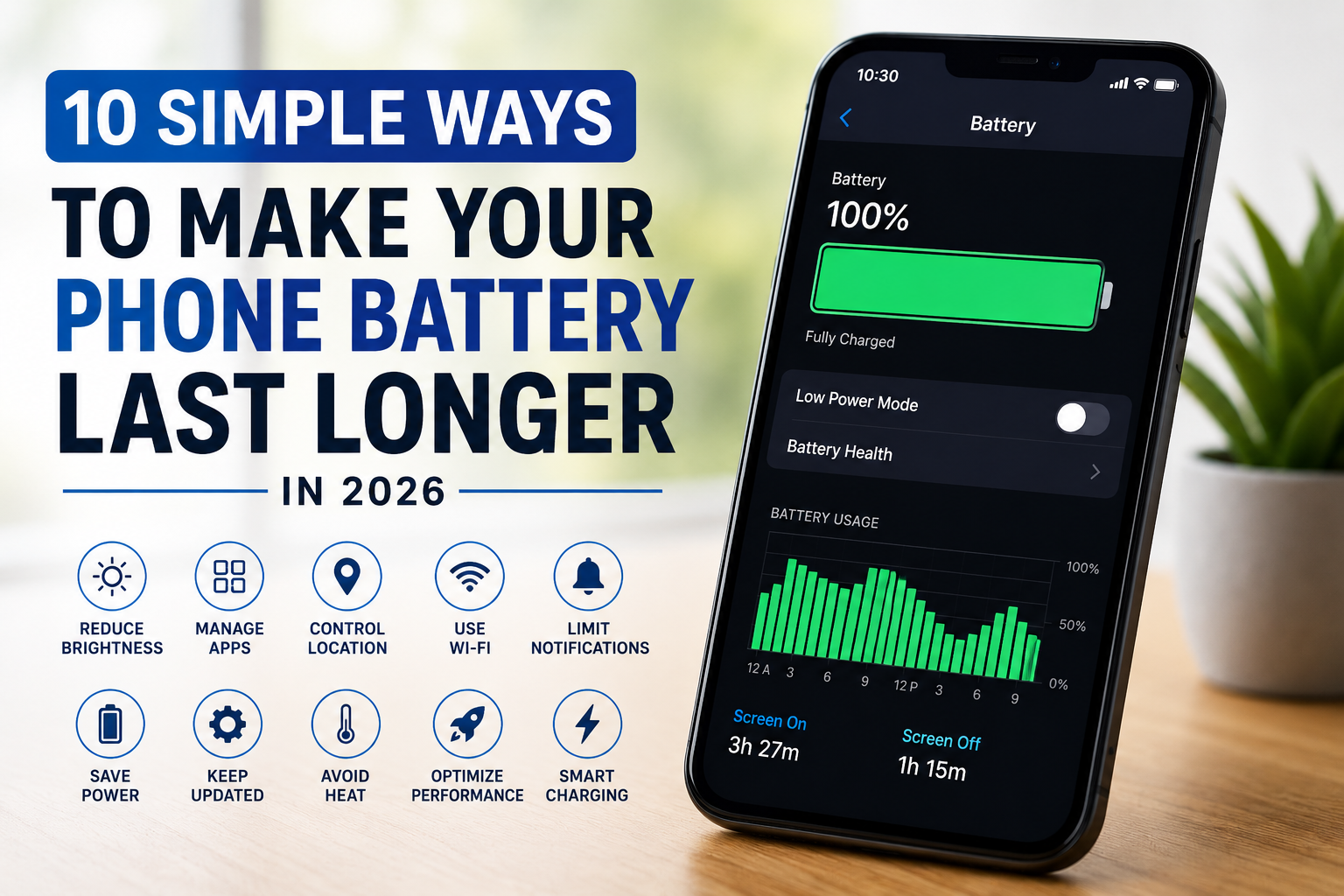
10 Simple Ways to Make Your Phone Battery Last Longer in 2026
Your smartphone is one of the devices you probably use every day for communication, work, entertainment, navigation, shopping, and many other tasks. Because of this, running out of battery can be frustrating, especially when you are away from a charger.
The good news is that you do not always need a new phone or a larger battery to improve everyday battery life. A few simple settings and habits can reduce unnecessary battery use and help your phone last longer between charges.
In this guide, we look at 10 practical ways to reduce battery drain and make better use of your phone's battery in 2026.
Table of Contents
- 1. Reduce Screen Brightness
- 2. Use a Shorter Screen Timeout
- 3. Check Battery-Using Apps
- 4. Limit Unnecessary Background Activity
- 5. Review Location Settings
- 6. Reduce Unnecessary Notifications
- 7. Use Wi-Fi When It Makes Sense
- 8. Keep Your Phone Updated
- 9. Use Battery Saver When Needed
- 10. Protect Your Phone From Excessive Heat
- Frequently Asked Questions
1. Reduce Screen Brightness
The display can use a significant amount of battery, particularly when the screen is bright and used for long periods.
If your screen is brighter than necessary, reduce the brightness to a comfortable level. You can also use automatic or adaptive brightness if your phone provides that option.
You do not need to keep your screen extremely dim. The goal is to use a comfortable brightness level without wasting energy.
2. Use a Shorter Screen Timeout
Your phone can continue using battery while the screen remains on even when you are not actively using it.
Check your display settings and choose a reasonable screen timeout. A shorter timeout can prevent the display from staying on unnecessarily.
This is especially useful if you often put your phone down without manually locking the screen.
3. Check Battery-Using Apps
Some applications can consume more battery than others, particularly when they frequently use the internet, location services, cameras, or other phone features.
Open your phone's battery settings and check which apps are using the most power.
If an application is consuming an unusually large amount of battery, check whether you actually need all of its background activity.
4. Limit Unnecessary Background Activity
Some apps continue working in the background even when you are not actively using them.
Depending on your phone and operating system, you may be able to restrict background activity for apps that do not need to update constantly.
Avoid disabling important background functions without understanding what they do. Focus on apps that are not important to your daily notifications or services.
5. Review Location Settings
Location services can be useful for maps, navigation, weather, delivery services, and other applications. However, not every application needs continuous access to your location.
Review which apps can access your location and choose an appropriate permission where your phone provides that option.
For apps that do not need location information, consider disabling access.
6. Reduce Unnecessary Notifications
Notifications do more than display messages. They can also wake your screen, use network activity, and encourage you to interact with your phone.
Review your notification settings and turn off notifications that are not useful to you.
Keeping only important notifications can also make your phone less distracting during the day.
7. Use Wi-Fi When It Makes Sense
When available, a reliable Wi-Fi connection can be useful for everyday internet activities.
If your phone frequently searches for a network or struggles with a weak connection, battery use may increase.
When you know you will be somewhere without a useful mobile connection, consider using available offline features rather than constantly trying to access online services.
8. Keep Your Phone Updated
Phone manufacturers regularly release operating-system and application updates that can include bug fixes, security improvements, and performance changes.
Keeping your phone and important applications updated can help maintain normal performance.
However, if your phone suddenly experiences unusual battery drain after an update, check for additional updates and review battery usage to identify the cause.
9. Use Battery Saver When Needed
Most modern smartphones include a battery-saving or low-power mode.
This feature can reduce certain background activities and performance settings when your battery is running low.
Battery saver is particularly useful when you are traveling, away from a charger, or need your phone to remain available for an important call.
10. Protect Your Phone From Excessive Heat
Excessive heat can affect battery performance and may contribute to long-term battery degradation.
Avoid leaving your phone in direct sunlight or inside a very hot vehicle for extended periods.
If your phone becomes unusually hot, allow it to cool naturally and avoid putting it in a refrigerator or freezer.
What Causes Phone Battery Drain?
Battery drain can have many causes. Common examples include a bright display, demanding applications, poor network conditions, location services, background activity, and extended use of resource-intensive features.
Battery health also changes over time. As a phone battery ages, its capacity can decrease, meaning it may not last as long as it did when the phone was new.
How to Check What Is Draining Your Battery
If your phone battery seems to be disappearing unusually quickly, start with the built-in battery settings.
- Open your phone's Settings.
- Find the Battery section.
- Check battery usage by application.
- Look for apps using an unusually large amount of power.
- Review display, background, and location settings.
The exact menu names can vary between Android phones and iPhones.
Should You Always Keep Battery Saver Turned On?
Not necessarily. Battery-saving modes can be useful when you need to extend battery life, but they may reduce background activity or change some phone features.
For normal daily use, you can keep your phone's standard settings and use battery saver when you need additional battery life.
Frequently Asked Questions
How can I make my phone battery last longer?
Reduce unnecessary screen brightness, shorten screen timeout, review battery-hungry apps, limit unnecessary background activity, reduce unneeded notifications, and use battery saver when appropriate.
Does screen brightness affect battery life?
Yes. The display can consume a significant amount of energy, especially when it is bright and used for long periods. Reducing brightness to a comfortable level can help reduce battery consumption.
Does closing every app save battery?
Not necessarily. Modern smartphones manage applications and background processes automatically. Instead of repeatedly closing every app, check your battery settings and focus on applications that are actually consuming excessive power.
Does battery saver improve battery life?
Battery saver can extend the remaining battery charge by reducing certain background activities and other power-consuming functions. It is most useful when you need your phone to last longer before the next charge.
Why does my phone battery drain quickly even when I am not using it?
Possible causes include background applications, notifications, location services, poor network conditions, system activity, or an aging battery. Checking your phone's battery-usage information can help identify the cause.
Final Thoughts
You do not need to change every setting on your phone to improve battery life. Start with the simple things: use a comfortable screen brightness, reduce unnecessary notifications, review battery-using apps, and limit background activity that you do not need.
Also pay attention to heat and use battery-saving mode when you need your phone to last longer.
Small changes to your everyday phone habits can help you get more useful time from each charge while keeping the features you actually need.
Technology Disclaimer
This article provides general technology information for educational purposes. Settings and battery-management features can vary between devices, manufacturers, and operating-system versions.